

The Store Details page is where you manage your store's public profile on Handmade.com. Completing it fully helps customers trust your shop, find your products, and connect with your brand. Fill in the sections below and click Save Changes when you are done. You can return and update any of these fields at any time.
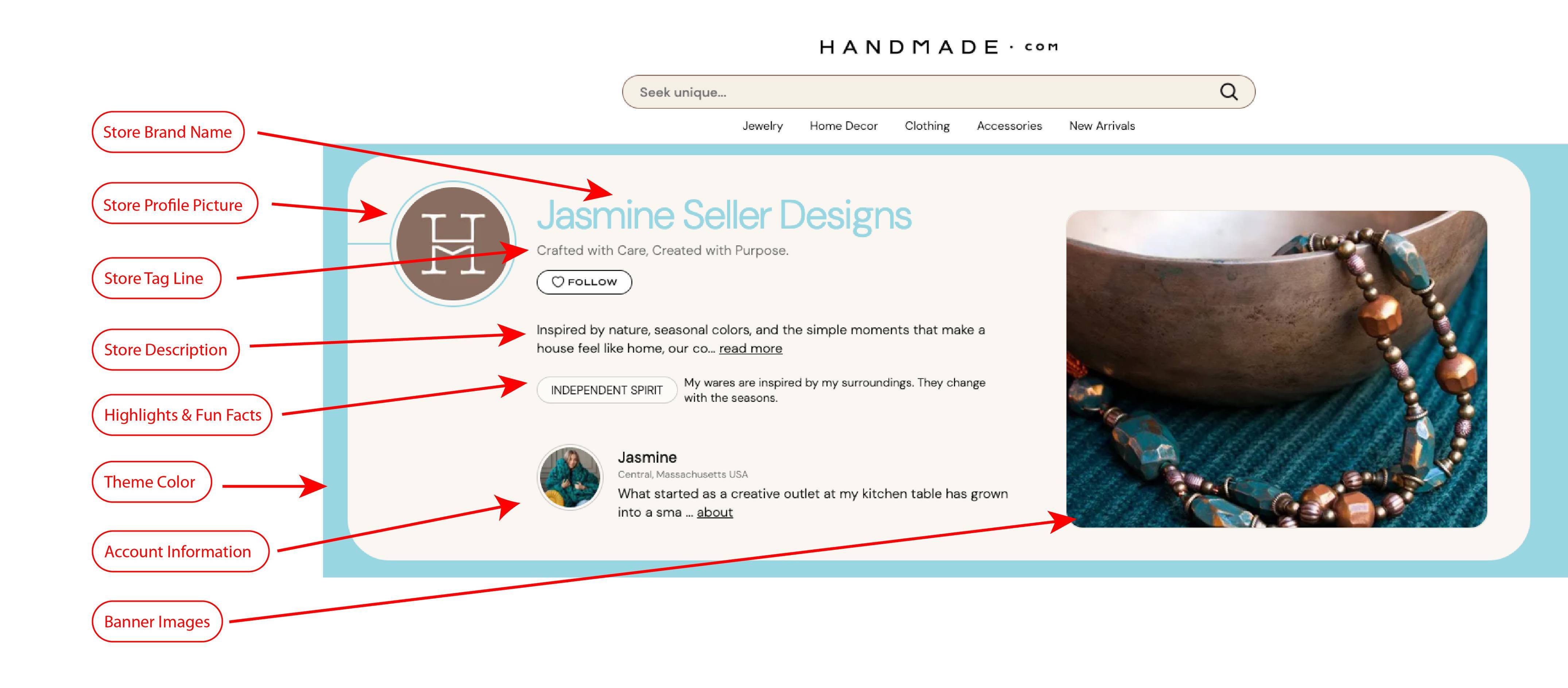 Store Details Explained handmade.com
Store Profile Picture
Upload a profile picture for your store. Use a logo, product photo, or even a personal picture — something memorable that helps customers connect with your store. Accepted formats: .PNG, .JPG, or .GIF. Images cannot be larger than 20MB.
Tip: Use a logo, a close-up product photo, or a personal picture — something that helps customers instantly recognize and connect with your store. Avoid blurry or low-resolution images.
Store or Brand Name
This is the public-facing name of your store as it appears to shoppers across the site. Type the name exactly as you want it to display in your shop. Keep it consistent with how you brand yourself elsewhere.
Store Description
The store description gives customers a sense of who you are, what you make, and why your work is special. It appears prominently on your store page. Write a few sentences or a short paragraph describing your store.
Consider including:
- What types of products you sell
- Your craft or creative process
- Your inspiration or background story
- What makes your items unique or handmade
Store Tagline
The tagline is a short, catchy phrase that captures the essence of your brand. Think of it as your store's motto or slogan. Keep it punchy and memorable. Examples: "Handcrafted with love in New England" or "Jewelry as unique as you are."
Store Measurements
These settings control how product dimensions and weights are displayed to your customers.
- In the left dropdown, choose your unit system: Imperial (inches, feet, pounds) or Metric (centimeters, kilograms).
- In the right dropdown, choose your weight unit: Ounces or Grams (or the equivalent in your chosen system).
Store Contact Information
These contact details are used for order notifications, customer service, and account verification. Your phone number is required. Your store address is used for shipping calculations, tax purposes, and displaying your general location to customers.
You do not need to use your home address. A P.O. Box or business address is perfectly acceptable if you prefer more privacy.
Store Highlights & Fun Facts
Highlights are badges and short notes that tell customers important things about your business — like whether it's women-owned, community-focused, or a source of inspiration. They appear on your store page and help customers feel connected to your values. This is optional and you can enter more than one. Be authentic. Only select highlights that genuinely describe you or your business. These badges build trust with shoppers.
Store Theme
The store theme sets a color palette for your store's public page. This is a purely visual choice and can be changed at any time. Choose a color that complements your products and brand personality.
Store Banner Images
Your banner is the first visual customers see when they land on your store page. You can upload up to 5 images or videos to create a rotating showcase. Use your banner to make a strong first impression. Show your best-selling products, a peek behind the scenes of your creative process, or a lifestyle image that captures the spirit of your store. Image files must be .PNG, .JPG, or .JPEG and no larger than 20MB. Video files must be .mp4 or .mov and no larger than 500MB.
- Click the Select File or Take photo button inside the upload area, or drag and drop files directly into the dashed box.
- Select an image (.PNG, .JPG, or .JPEG format, max 20MB) or a video (.mp4 or .mov format, max 500MB).
- Repeat up to 5 times to build a gallery of banner media.
Save
The Save Changes button may appear grayed out until all required fields (marked with *) are completed. Once you have filled out all required fields, you must save your changes for them to take effect.
To view your storefront, click your Store Name at the top of the page after saving all changes.
 View Your Storefronthandmade.com
To change your "Account Information" that is displayed on your storefront, navigate to the menu at the top right corner of the screen with your name, and choose Account Settings from the drop-down.